
Groups allow you to segment your supporters for large scale organizing. Create groups for regions, partners, teams, staff members, languages and more. Read our blog post to learn more about using groups to scale your organizing efforts, and watch our YouTube video to learn about using Groups to manage your supporters.
Click on Groups in the left hand menu. Start by clicking Create New Group and name your group. If you are on a free or Bronze plan, you will be prompted to upgrade. Groups are available on Silver and higher plans.
Adding Supporters to a Group
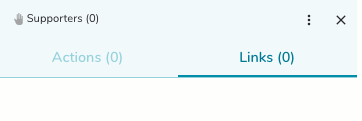
To add supporters to your group, select the group, click Links, then click the Add Link button. Any supporters that have joined through a specific recruitment link/code will automatically be added to this group. For information on creating a new link, read this FAQ.
You can also directly add supporters when sending an invite email from the Supporters screen. Read this FAQ more information.
For supporters who have already joined your OutreachCircle, you can add them to groups using a Supporter Forms action. Step-by-step instructions are in this FAQ.
To manually edit which supporters are in which groups, go to your Supporters page. You can select multiple supporters to assign them all to a group at once.
To unassign a supporter from a group, hover over their name on the Supporters page, click on the three horizontal dots, and then hover over Manage Groups. If you have a lot of supporters, you can search or filter the Supporters page to find the right person.
Groups and Actions
Each group can have a unique set of actions for supporters to complete. Select the group and click the Add Action button to add actions to a group. Actions not assigned to a group or a supporter are available to all supporters.
Supporters who are part of a group will be able to see actions assigned to that group, actions assigned specifically to that supporter, and actions not assigned to a group or a supporter (which are visible to all your supporters).
If you stop adding new actions to a specific group, they will still be able to see actions that are visible to everyone.
Comments
0 comments
Please sign in to leave a comment.