
From within the admin / client.outreachcircle.com platform, OutreachCircle clients can
- View supporters and supporter information
- Filter or block supporters
- See which supporters have completed specific actions
- Send emails and reminders to their supporters
View supporters and supporter information
Click on "Supporters" in the menu. The supporter names, actions completed, email, source, date joined, and phone number will display:
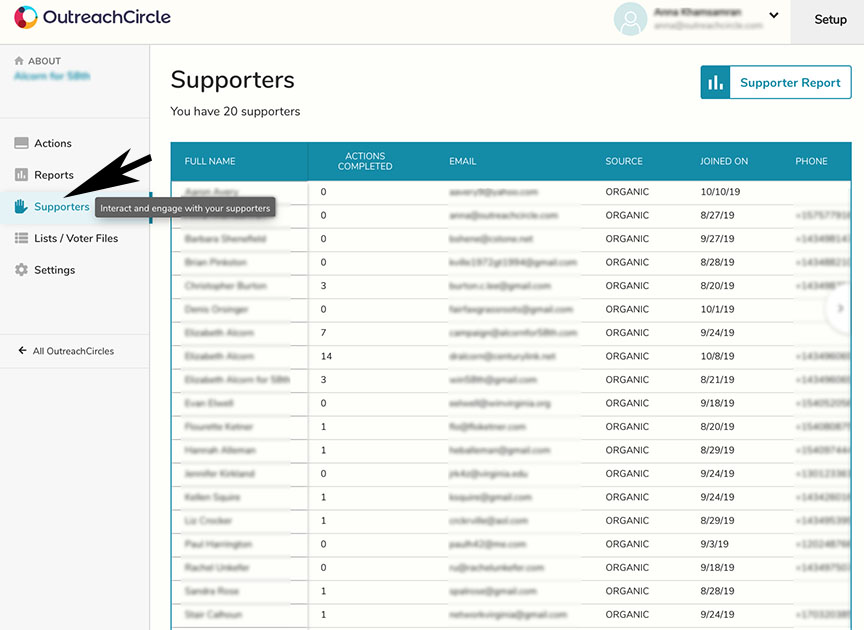
The Source column tells you how each supporter joined your OutreachCircle. There are four ways:
- Organic: The supporter searches for your OutreachCircle in the app and joins it
- Outreach: The supporter joins your OutreachCircle by clicking a recruitment link in an email, text, or social message
- Invited: The supporter is invited to join by an admin (by importing a list of supporters or inviting a single supporter through the admin platform)
- Phone2Action: The supporter joined through a Phone2Action workflow
The Email Status column tells you whether invite emails sent to the supporter were delivered, bounced, or opened.
Supporters are able to use the platform once without entering a name or ZIP code. If a supporter has only used your OutreachCircle once and hasn't entered that information, it will show as a blank field on the Supporters page. The next time they use the platform, they will need to enter a name, ZIP code, and password.
Filtering and Blocking Supporters
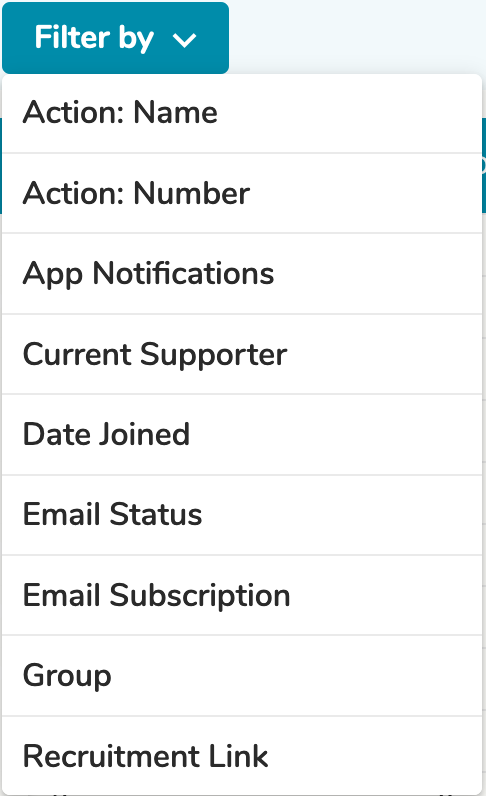
To filter supporters, view your supporters and click on 'Filter by' to see the dropdown menu of available filters. You can use filters and search based on criteria like date joined, email subscription status, or whether a supporter has app notifications turned on. You can also save custom filters so you don't have to recreate them every time.
To block a supporter, select their name and click on the menu button next to 'Assign to Group', then click 'Block Supporter(s)'.

Blocked supporters are still visible in the Supporters report, and they'll be able to see the campaign landing screen, but they won't see any actions.
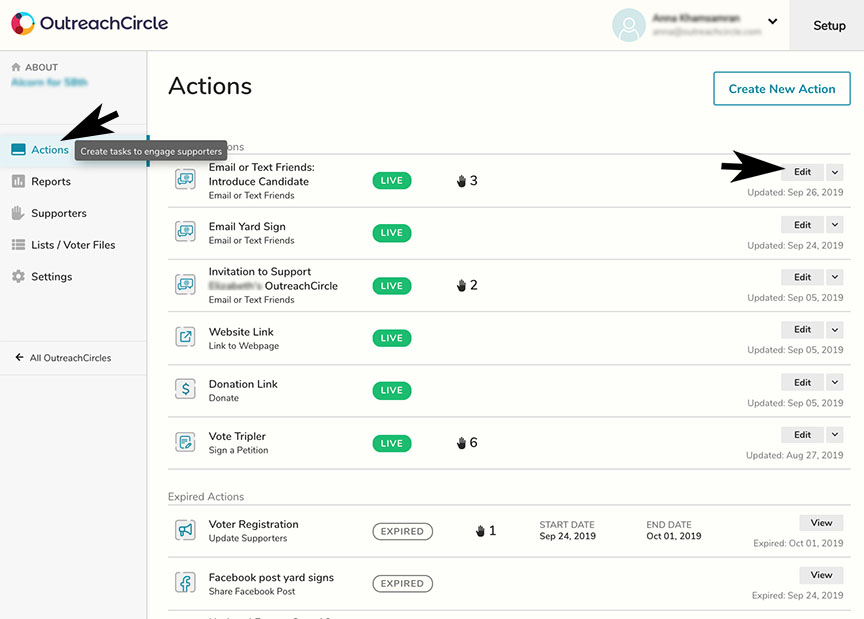
To view the supporters who have completed a specific action, first go to the "Actions" page, locate the action you would like information about and click the "Edit" button:
Locate the "raised hand" icon and click on "VIEW":
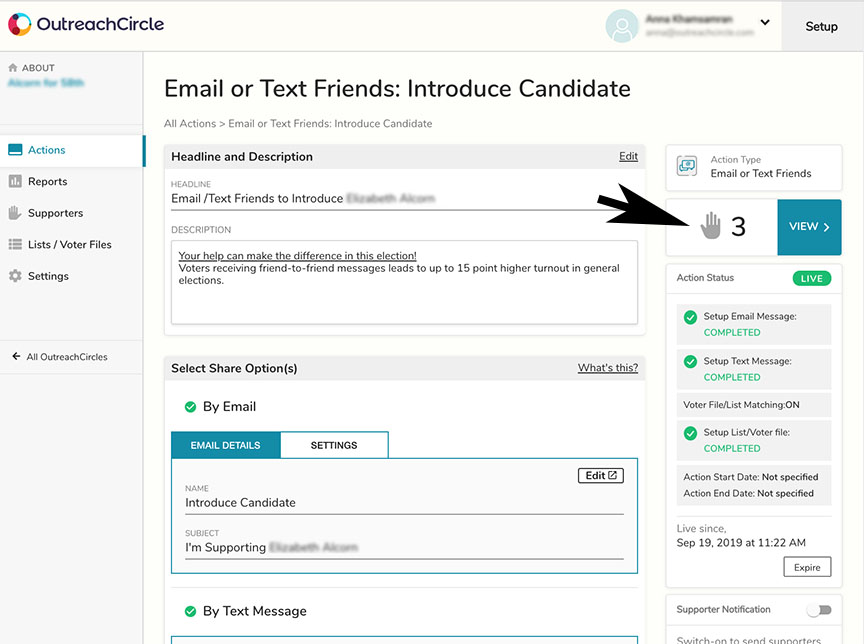
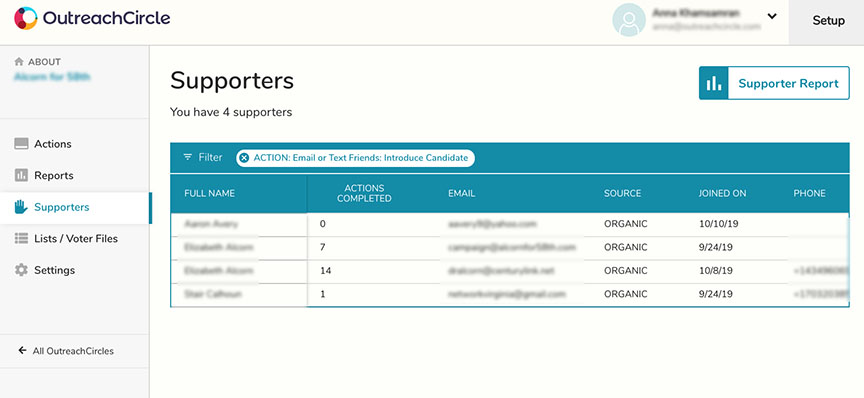
This will display the list of supporters who have completed that specific action:
For more in-depth reports see the article on Reports.
Send an Email or Reminder to Supporters
There are 3 ways to send email messages or reminders to Supporters directly from the client side:
1. Send a notification to all, or selected supporters
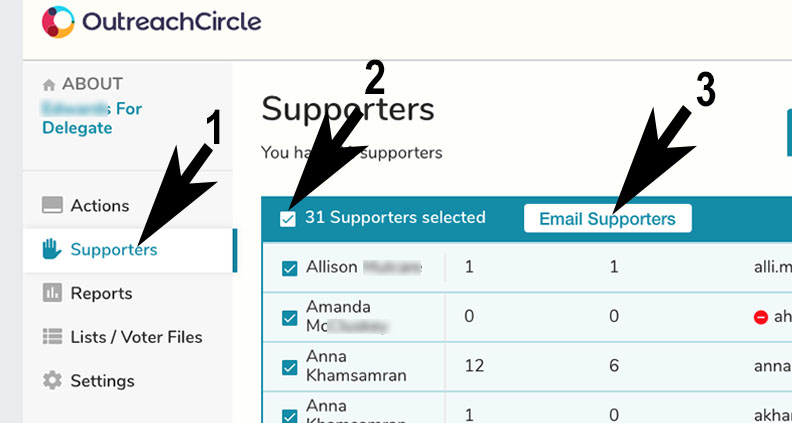
- Click on Supporters on the Menu to go to the Supporter Screen
- Choose all supporters by clicking in the box at the top of the row, filter or search for supporters, or select specific supporters by clicking on the box in front of each name
- Click the type of notification you want (App, Text, or Email)
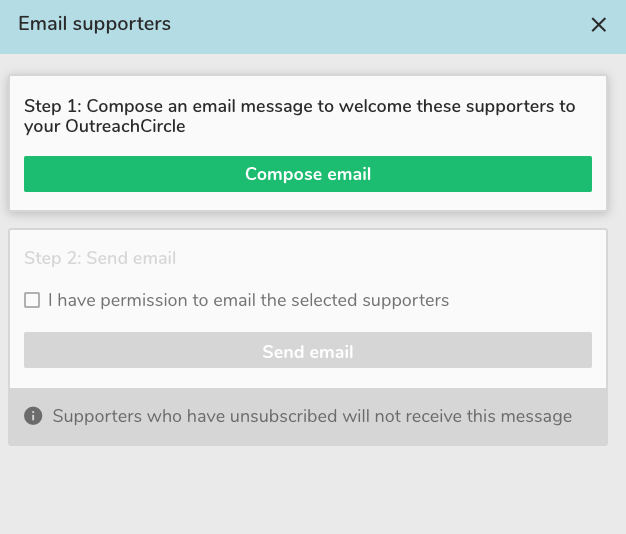
For app or email notifications, follow the steps to compose your message.
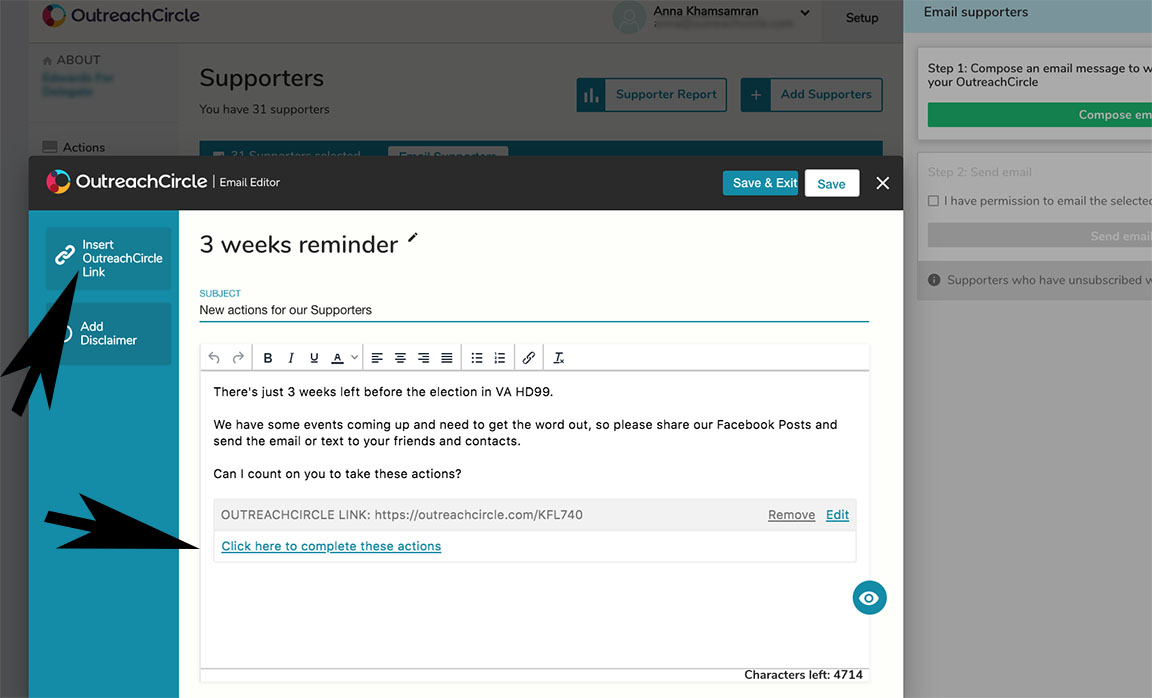
If you are composing an email, be sure to add the link to bring them back to the top of your OutreachCircle's feed and complete actions. When you are done editing, click, "Save & Exit:"
Click that you have permission from these contacts to send them email, then click send.
For text notifications, you will need to create a Text Supporters action. Read our Texting Supporters guide for instructions.
2. Compose and send email reminder to all supporters for a specific action
On the Action Screen, click on the small dropdown arrow on the right of the action and click "Send Reminder"
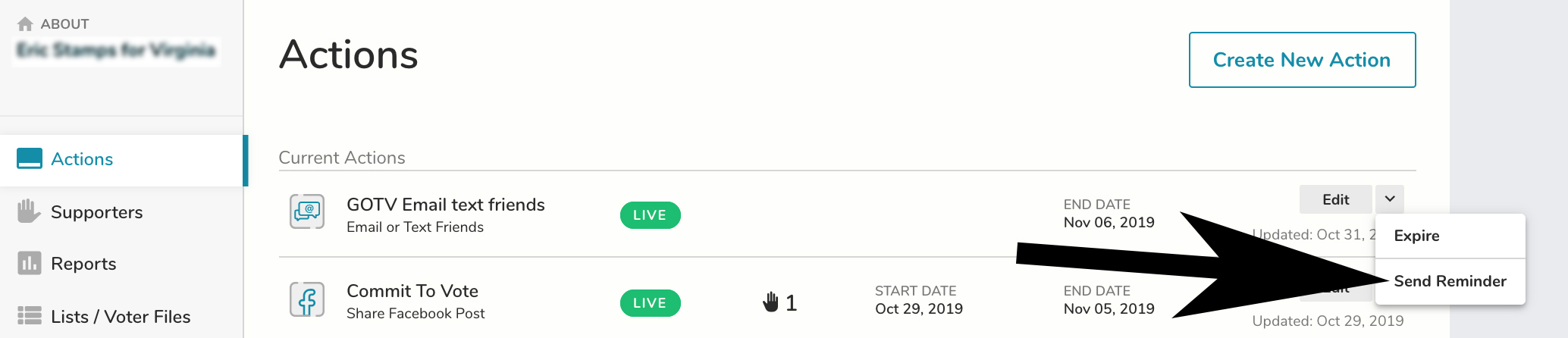
Edit the Subject, Body and Link, as appropriate, then click, "Send Reminder" The email will be sent to all supporters, except for ones who have unsubscribed.
3. Send a boilerplate reminder automatically to all supporters when an action is set up
When an action is set to "Live," this popup appears. To send an automatic reminder, toggle the "Automatically Send Supporters an Email Notification" and then Click "Continue" to send the email
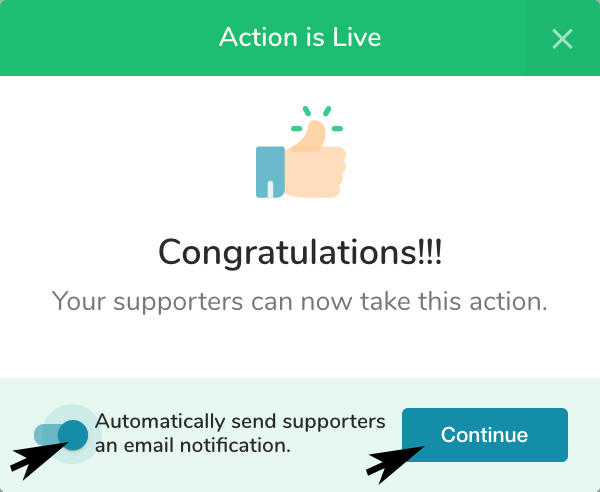
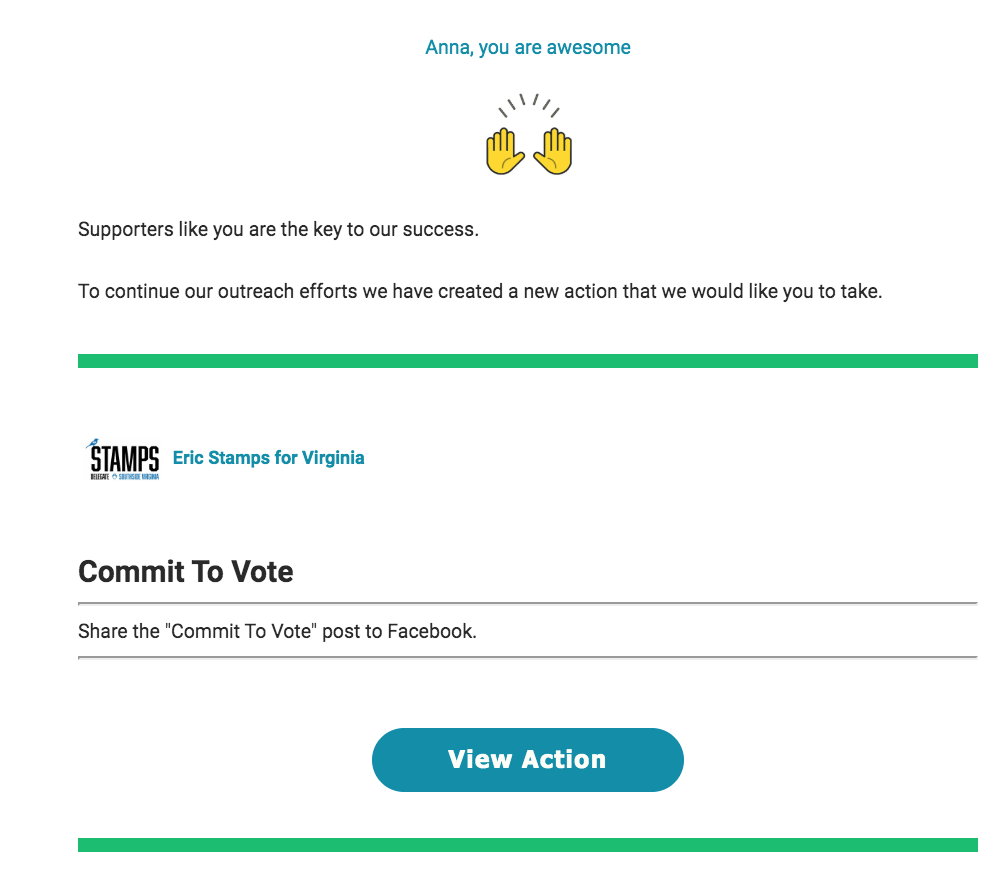
An email will be sent to all supporters, except for the ones who have unsubscribed. The email will include the Headline and Description from the specific action. It is not separately editable:
Comments
0 comments
Please sign in to leave a comment.