
Bronze-level and above plans have access to adding lists and voter files. If you'd like information on using lists, please see Using Lists in Actions.
Import a list / voter file:
There are several methods to add a list:
- Import a list / voter file manually
- NGP VAN / VoteBuilder
- TargetSmart
- PDI
- Other Sources
- Affinity and P2P (Assigned Contact)
To manually import a list / voter file:
- Navigate to Lists / Voter Files and select ADD in the first drop down and List, Voter File, or Universe in the second; then select CSV/TXT.
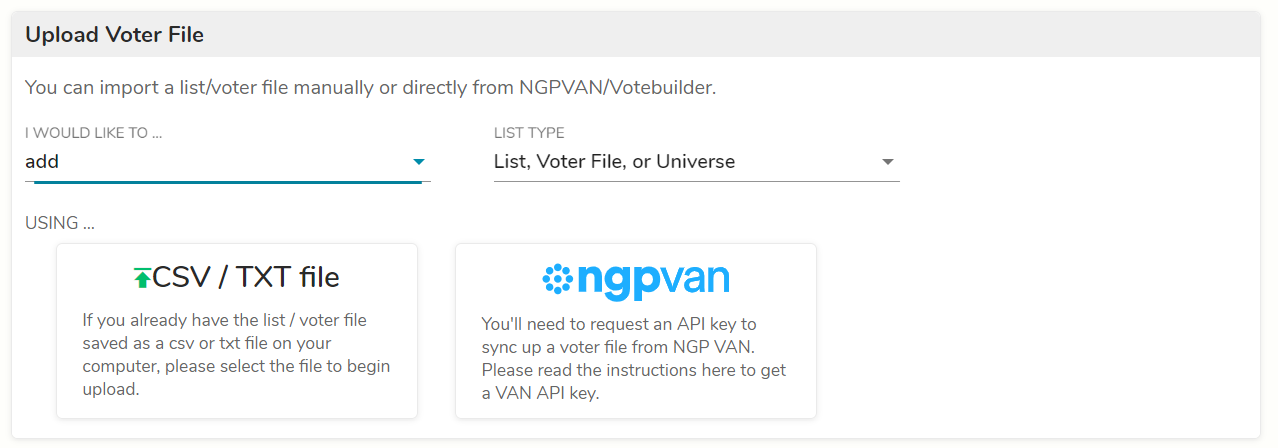
- Choose the list / voter file that you want to import.
- The different fields in the list / voter file will be auto-mapped to the OutreachCircle fields that are available. You should review and edit this mapping as needed.
- We recommending importing a voter file with the following fields: First Name, Last Name, Address Line 1, Apt or Address Line 2, Zip, City, State, Cell Phone, Home Phone, Work Phone, All emails, Gender, Party, Date of Birth, Latitude, Longitude, Custom Scores
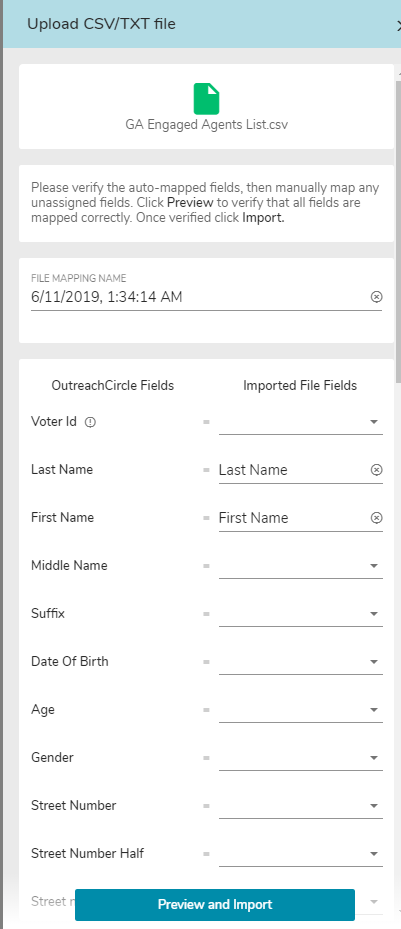
- At the bottom of this panel, you can type any custom fields you have and then click the Add field button.
- Click the Preview and Import button to preview your voter file.
- Verify that all fields are mapped correctly.
- To make changes, click Close; otherwise click Import.
To import a list / voter file from NGP VAN/Votebuilder:
The first step to importing a voter file (Person List) or syncing survey responses is to request a VAN API key.
To request the VAN API key:
- In VAN, click Integrations, then API Integrations.
- Click on the Request API Key button.
- In the pop out, select OutreachCircle as the integration type and select your admin to send to for approval.
- Once approved, navigate back to Integrations > API Integrations.
- Select the request, then click the button to generate the key.
- Note: this key will only be shown once. You may want to save this in a secure location.
- To put this key into your OutreachCircle account, log into OutreachCircle, go to Settings > Integrations and select NGPVAN.
- In the side window, enter the API name and the API Key.
If you have trouble with this, please reach out to support@politicaldata.com with the key.
Steps to create/save a new list in NGP VAN:
- From MyVoters, click Create a New List (CAL) to create a list of people (all voters preferred).
- Click Run Search (verify that the People # is what you expect).
- Click Save List As, select the Saved list and New List radio buttons.
- Save to an existing (or new folder) and name the list (Folder must be created in this committee).
- Make sure the folder where the list is saved is shared with the OutreachCircle API user in your committee.
- To share the folder, go to View my folders, click the folder name hyperlink, click edit folder in the top right, and then scroll down to add "API, OutreachCircle" user to share the folder.
- Login to OutreachCircle, and click Settings > Voter file.
- Click the NGP VAN Import button and select your saved List.
If NGP VAN lists are not showing up in OutreachCircle:
- First, make sure the API key has access:
- Go to the folder in NGP VAN and click the Edit button to check if the API key has access to the folder. If not, give access to the API key
- Check if the list is part of the folder with API key access. If not, edit the list
- Make sure the list is marked ACTIVE
- If both the folder and list level access are correct, but you still don't see your list in OutreachCircle, try this workaround:
- Create a new folder
- Give folder access to the API key
- Add the list to the newly created folder. This should make the list appear in your OutreachCircle
To import a list / voter file from TargetSmart
- If you have purchased a file from TargetSmart, follow the manual import instructions above.
- If you would like to take advantage of our partnership with TargetSmart to access a TargetSmart voter file at a reduced rate, contact support@politicaldata.com.
To import a list / voter file from PDI
- Configure an integration with PDI; see here for additional details
- From within PDI Online Campaign Tools, navigate to Universes and Lists
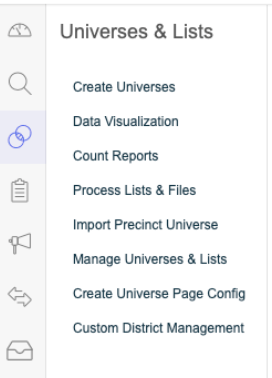
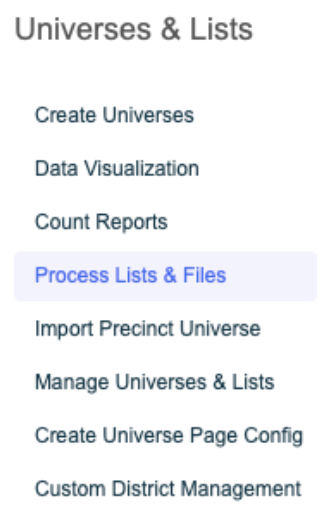
- Choose Process List &File
- Choose Export Third-Party Service as the file type

- Select OutreachCircle as the vendor. If this option is not listed, please contact support@politicaldata.com
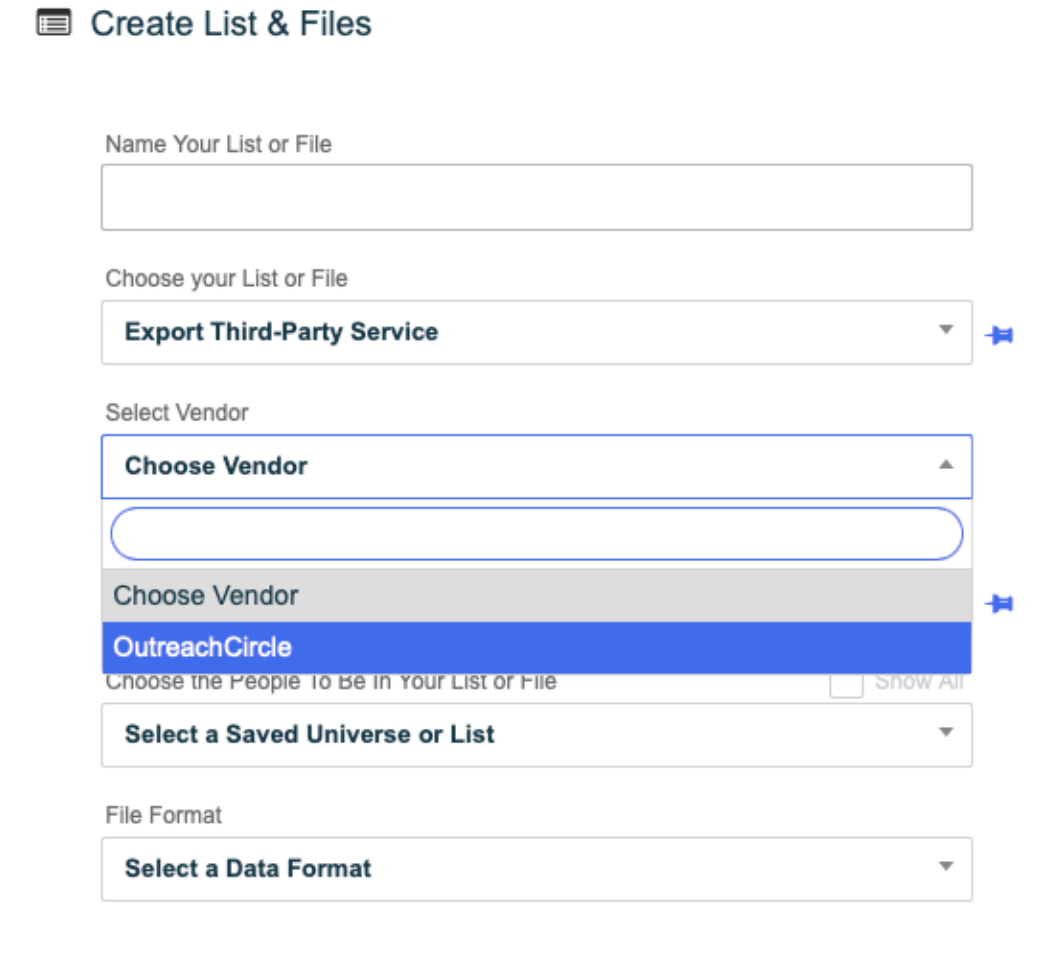
- Choose the appropriate OutreachCircle action

- Select the universe/list you would like to export to OutreachCircle and click Process File

- Depending on the on the type of PDI account you have, you might need to purchase the file. To do so, you will need a Billing Authorization Code. If you have any questions about your PDI plan, please contact kevin@politicaldata.com.
- The file will automatically show up in OutreachCircle, after you click process file. Larger files will take longer to process. You will receive an email from OutreachCircle once the file has been uploaded.
To import a list / voter file from another source
- OutreachCircle supports lists / voter files from your Secretary of State or Registrar of Voters as well as commercial vendors such as L2, Aristotle and NationBuilder.
- Once you have received a voter file in a CSV or TXT format, follow the manual import instructions above.
To import an assigned list for Affinity Texting or P2P Texting
- Navigate to Lists / Voter Files and select ADD in the first drop down. In the second drop down, select Assigned Contact List or Peer to Peer Texting List according to how you plan to use the list. (Assigned Contact Lists, for Affinity Texting, have a max list size of 200, and Peer to Peer Texting Lists have a max list size of 100K.) Then select CSV/TXT.
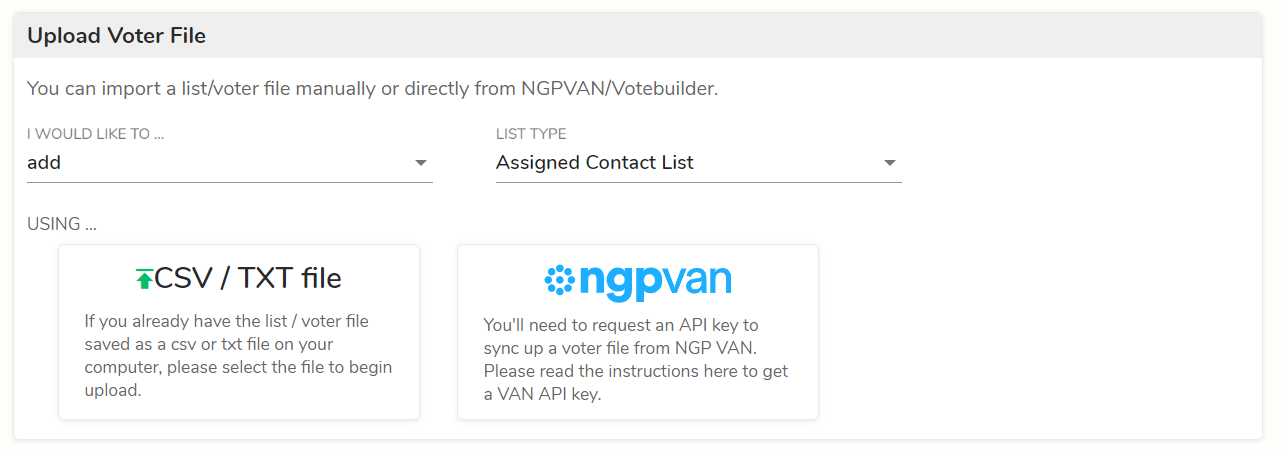
- Select your file.
- Name your upload and map the field. If you have uploaded a similar file, use previous mappings.
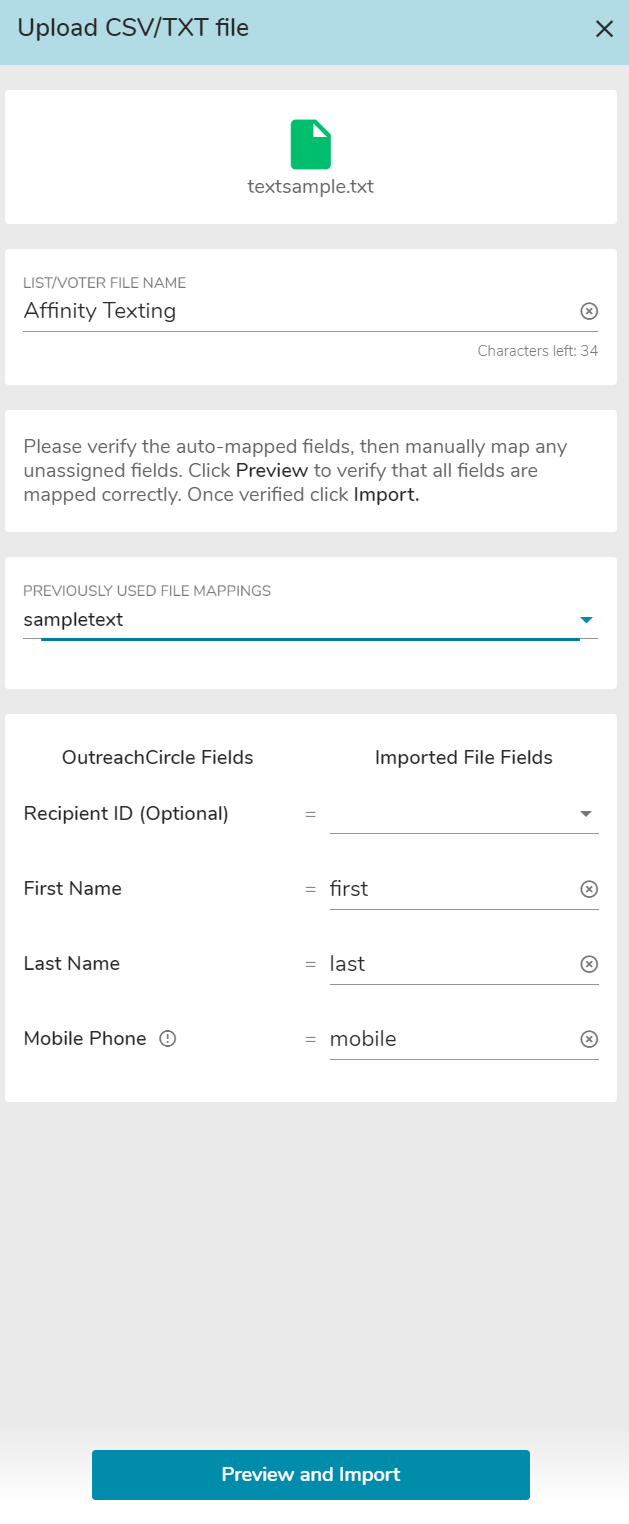
- Preview and import the file.
- Repeat with additional files if you are assigning more than one list/supporter.
Comments
0 comments
Please sign in to leave a comment.