
OutreachCircle Clients with Bronze-Level Plans and above can upload one or more lists and can link specific lists to specific actions.
Lists or Voter Files can be used as a limiting factor when setting up an email action, a text action, or a survey action (which is delivered by email or text). Lists can also be used for the following actions: Affinity P2P Texting, P2P Texting, Contact and Survey a List/Friends, Voter-Based and Address-Based Canvassing.
Note: Lists act as limiters on select email/text actions to ensure outreach is only to those whose contacts match the list / voter file. It is best to upload the most complete list you have access to. You can upload/import more than one list and link individual lists to individual email/text actions, or you can leave matching off and open to your supporters' entire contact list, as appropriate to your strategy. (Because contacts are assigned for Affinity P2P or P2P Texting actions, matching with supporters' address books is unnecessary.)
- Link a Voter File or List to a Specific Email/Text or Survey Action
- Assigning Lists to Supporters for an Affinity P2P Action
- Assigning Supporters to a P2P Texting Action
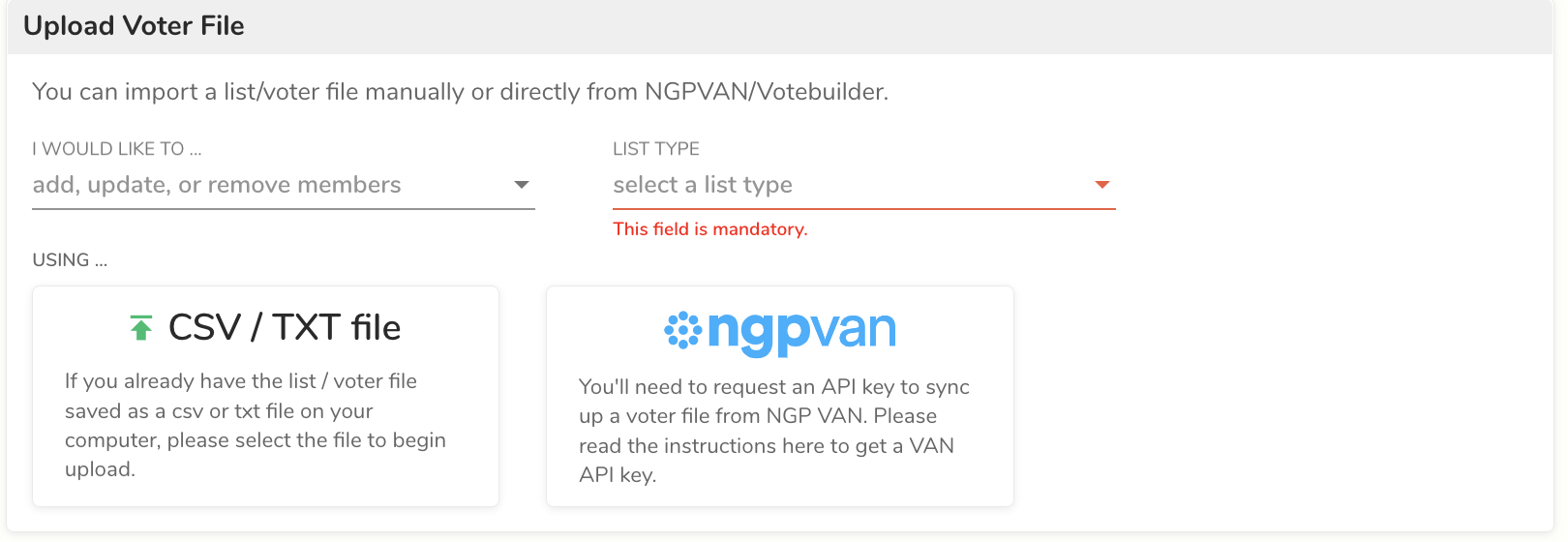
Select List Type
When importing a file, make sure to select the appropriate list type. Select List, Voter File or Universe for the following actions: Send a Survey to Friends, Email, Text or Share with Friends, Contact and Survey a List, Address Based and Voter Based Door-to-Door Canvassing. For Affinity Texting select Affinity Contact List and for P2P Texting select Peer to Peer Texting List.
Link a Voter File or List to a Specific Email/Text or Survey Action:
Bronze-level plans can use lists for Email/Text actions; Silver-level (or above) plans are required for Survey actions.
- Import or update the list or subset that you wish to limit your action to - for a subset of an existing list, use the update option. Click here for information on importing lists / voter files manually or through NGPVAN API
- Create a new Email/Text or Survey Action
Before setting the action to live, locate "Voter File/List matching required for this action" and toggle the button to the right:
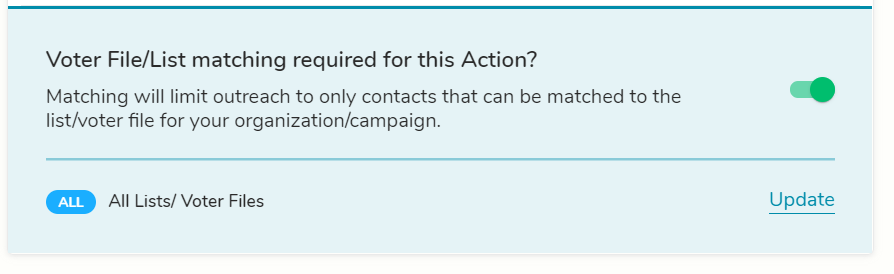
Click on the Update button and then click on the dropdown arrow in the Select a List/Voter File box:
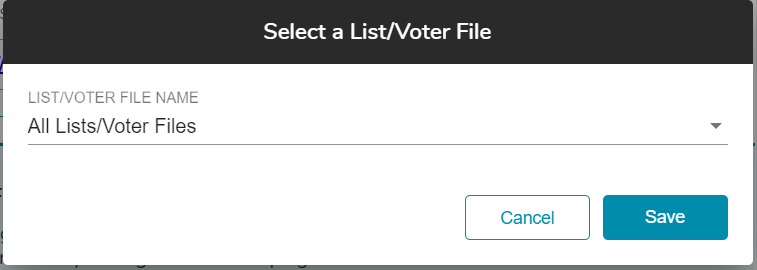
Choose the List/Voter File you would like linked to this action. You can choose a single list or All Lists.
Once the correct List/Voter File(s) is chosen, click Save.
When the action is live and a supporter uploads their contacts, the contacts will be matched to the list or voter file you selected, and they will only be able to send messages to those of their contacts who match your list.
Note: If you want to use a filtered version of a list for an action, you will need to upload the filtered version to your OutreachCircle so that you can select it for that action.
Assigning Lists to Supporters for an Affinity P2P Action:
Bronze-level and above plans can use Affinity P2P actions
- Set up an Affinity P2P Action.
- After selecting to Continue Setup/Editing you will select lists and assign them to supporters. If you have not yet uploaded the lists for this action, you will need to upload a List.
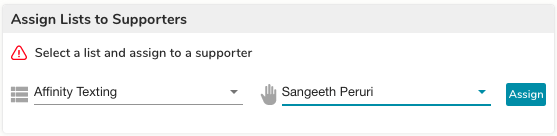
- In the Assign Lists to Supporters panel you will select the list and the supporter from the drop down menus and use the Assign button to confirm the assignment.
Assigning Supporters to a P2P Texting Action:
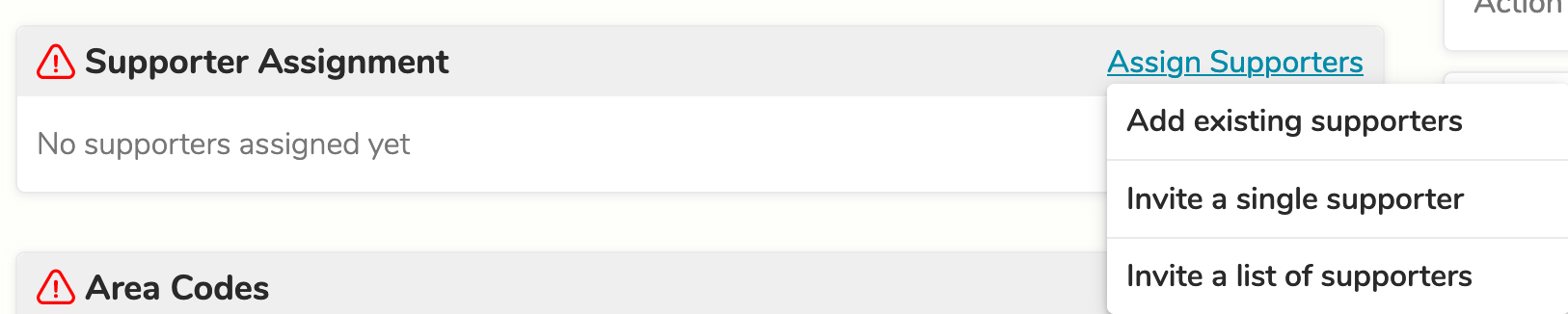
Upload your list of contacts, then set up a P2P Texting Action. When you reach the Action Landing Page, scroll down to Supporter Assignment to select supporters for the task.
Comments
0 comments
Please sign in to leave a comment.