
The Email, Text, or Share with Friends action is a great way to get your supporters to send information about your OutreachCircle to their friends.
Go to the Actions Overview to see the steps to set up the basic information for the Action.
Toggle to choose Share by Email, Share by Text Message, Share to Any App, or any combination.
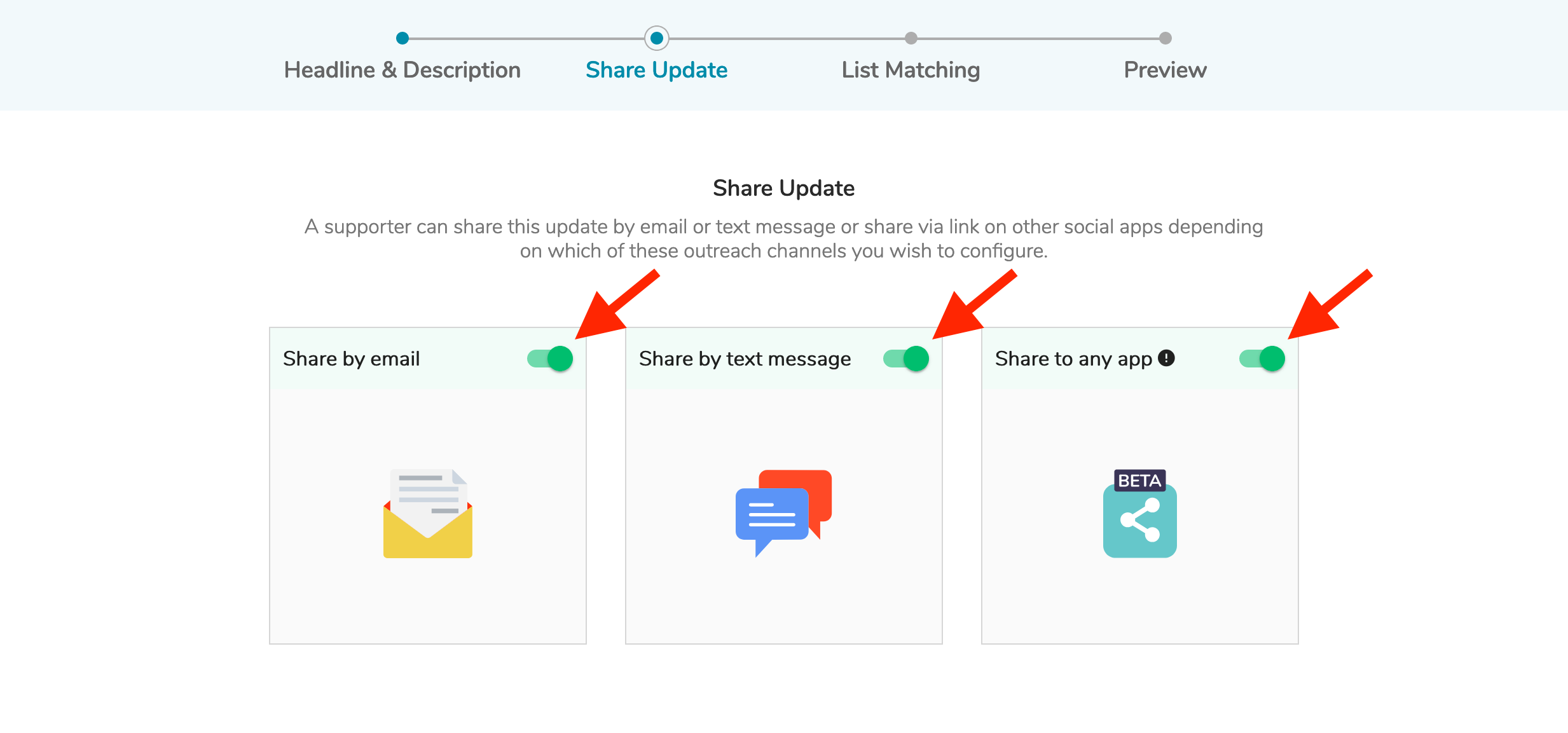
In the Edit Action Screen, scroll down to update the Select Share Option(s) section and click to select or compose your messages. You will see buttons for the sharing options (e.g. By email and/or By text)
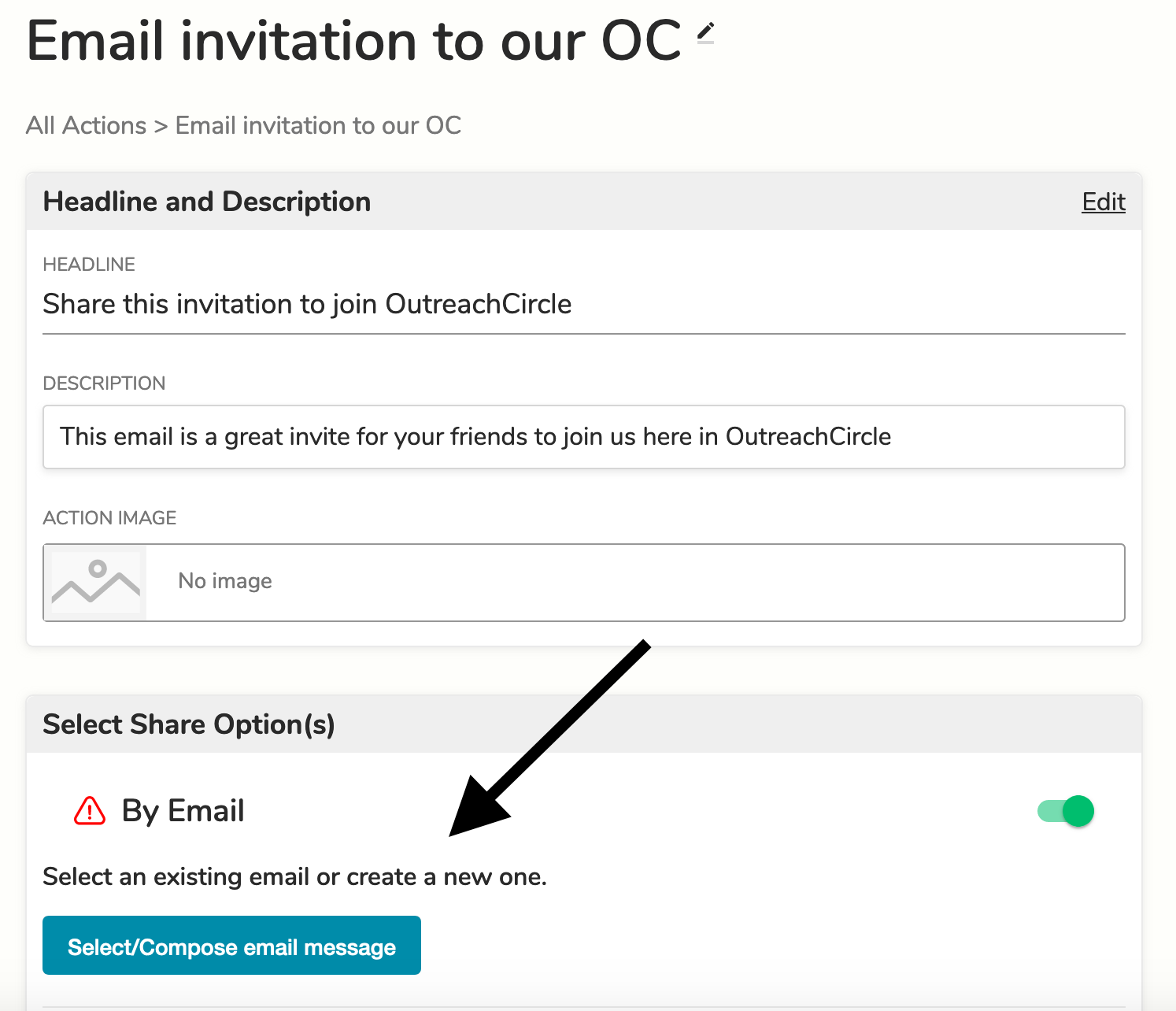
You will need to create separate email, text, and/or app messages.
Creating an Email Message
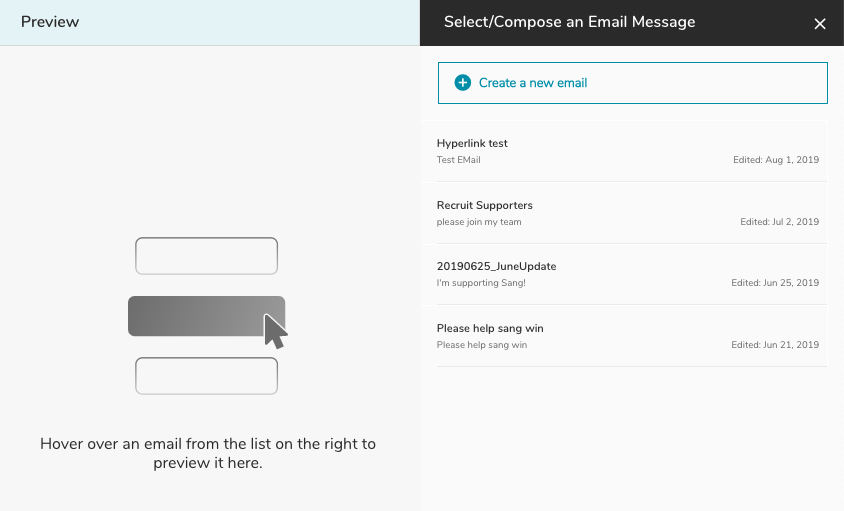
You can either compose a new email or select one of your previously created messages.
Complete the subject and the body of the email you want your supporters to send to their friends. While they will have the option to make edits, many will probably send their messages with minimal or no edits.
The OutreachCircle link can be clicked by the recipient to join your OutreachCircle. To include this in your message, click the Insert OutreachCircle Link button at the top left. It will place the link at the cursor.
The box for the OutreachCircle link presents the text as it will appear in the email. You can remove the box or edit the text as needed.

The disclaimer should be included at the bottom of your email if there are legal requirements related to having your supporters send emails to their friends. The Insert Disclaimer button at the top left will place the Disclaimer at the cursor.
The box for the Disclaimer presents the text as it will appear in the email. It will default to the text you included for the Disclaimer in the About section. You can remove the box or edit the text as needed.

The Preview icon (a blue button with a stylized white eye on it) shows how the email will appear when it is sent.
After you click the Preview icon to enter Preview mode, click the "Mobile Preview" icon on the top right to see how the email will appear on a phone or mobile device.
After reverting to Edit Mode, you can Save & Exit or Save using the buttons in the top right. If you don't want to save, just close the tab without clicking either of the Save buttons.
Creating a Text or App Message
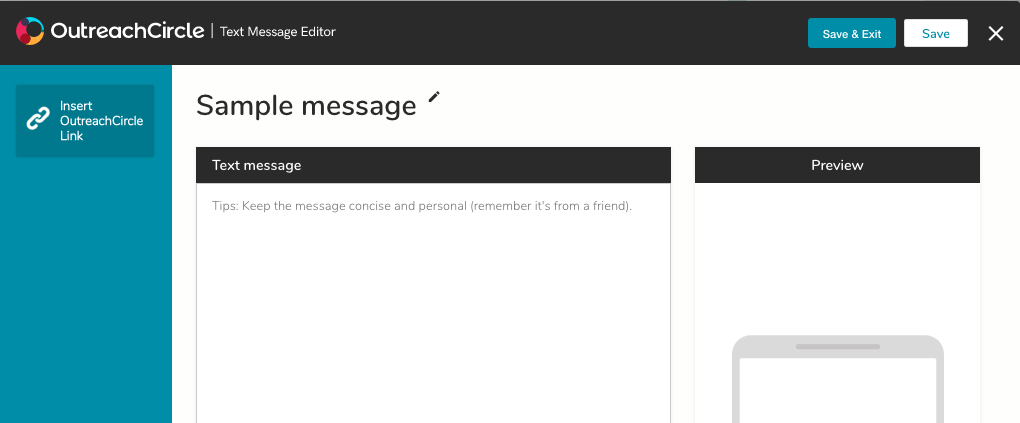
Creating a message for texting or sharing to any app is similar. You can create different messages for Text and Share to Any App, but the Text Message Editor and the App Message Editor work the same way.
Remember to keep these messages short and to the point. If you like, you can add links, including the OutreachCircle link by clicking the "Insert OutreachCircle Link" button on the left. When you are done, click "Save and Exit."
Clients with paid plans can choose whether to add Voter File/List matching to Text or Email Friends actions.
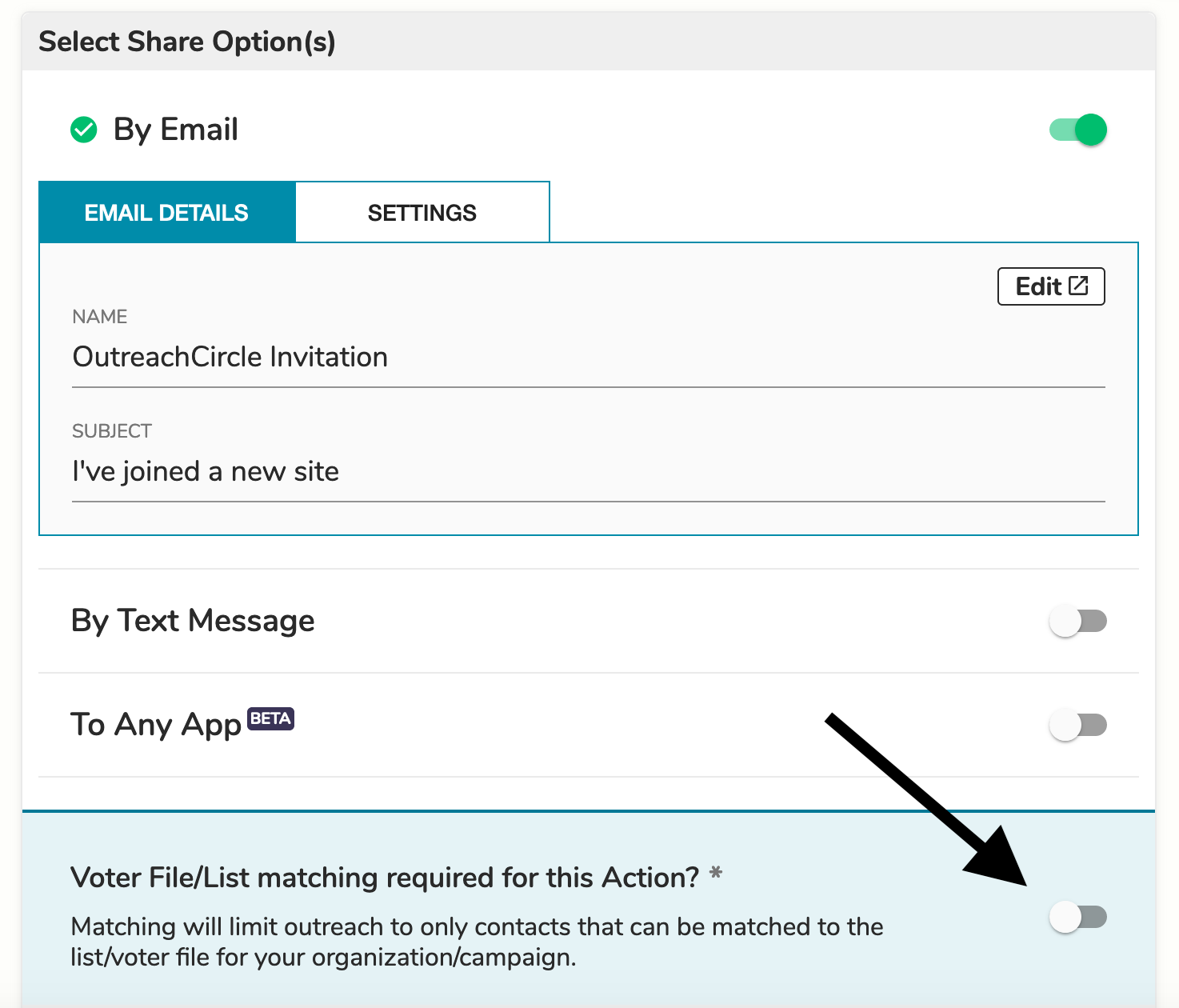
Because the Share with Friends action includes sharing to any app, voter file/list matching cannot be enabled. You can only enable matching for Text or Email Friends actions.
Once you have activated your action, it will appear in supporter feeds.
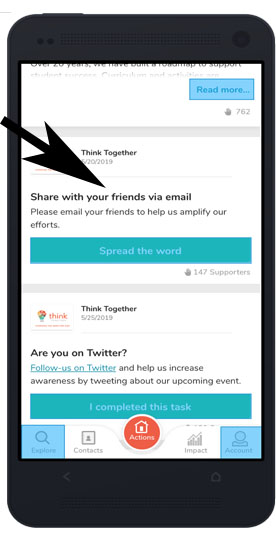
When a supporter clicks the button, they will be led through the steps to choose which of their contact list(s) they would like to use.
The supporter will be given the opportunity to edit the message before sending it. They can then decide which contacts to message or what app to share the message on.
Note: For specific guidelines for different apps, go to the Best Practices for Sharing to Any App guide.
To access information about your emails, go to Reports in your client account.
Comments
0 comments
Please sign in to leave a comment.