
OutreachCircle makes it easy to share petitions with your supporters. You can ask them to sign your petition in the feed, take them to a webpage to sign it, and/or ask them to share it with their networks.
Creating a Sign a Petition Action
Follow the instructions in the Actions Overview for setting up a Sign a Petition Action. You will need a link to your petition.
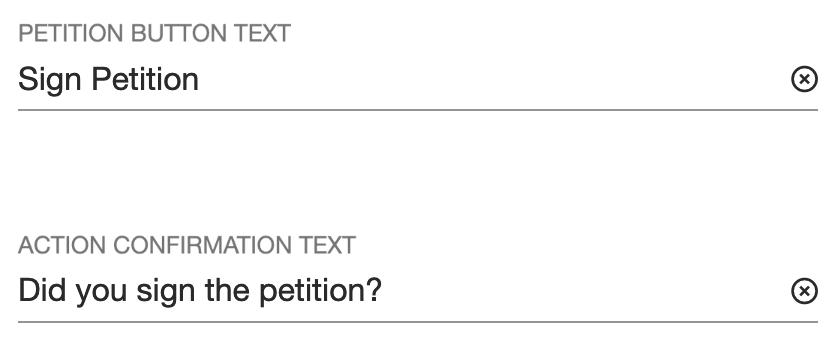
Add your link in the Petition Link section of the setup wizard. When supporters click the button, they'll be taken to the link and can sign the petition there. If you enable the Action Confirmation option, when the supporter returns to their feed, they'll see text asking if they signed the petition, as well as Yes and No buttons. You can change the Petition Button text and the Action Confirmation text to say whatever you want.
On the next page, you can toggle on and off whether you want your supporters to be able to share the petition. If you toggle sharing on, then you can choose whether to require list/voter file matching. For more information on matching, read the Using Lists/Voter Files FAQ.
If you have enabled sharing, you will then be able to choose which methods you want your supporters to be able to use to share your petition. The options are sharing by email, sharing by text, or sharing to any app. You can pick any combination of these. For instructions on enabling sharing with friends, read the Email, Text, or Share with Friends Actions FAQ.
Once you have set up messages for any sharing methods you have enabled, your Sign a Petition Action will be ready to activate.
One-Step Petitions
For a quick petition that supporters can sign without even leaving their feed, you can create an Assign a Task Action and edit the button text to indicate that clicking on the button is equivalent to signing the petition. Then, simply go to the Action Landing Page for that Action and click the Supporters button on the right side of the screen to see which of your supporters have signed.
Comments
0 comments
Please sign in to leave a comment.