
Several OutreachCircle Actions provide ways to ask supporters to share your message through their social media.
- Facebook Social Share Action
- Using Link to a Webpage Action for Social Sharing
- Using Assign a Task Action for Social Sharing
Read the FAQ for Email, Text, or Share to Any App Actions to learn about creating a message for your supporters to share on social media through sharing to apps.
Share Facebook Post Action
This can only be used to share posts on a Facebook page, not on a Facebook profile. The post and the page both need to be public in order for your supporters to be able to share the post through an Action.
First, make sure you are on a Facebook page. Find the page you wish to post from and click on "Posts." You will see "pg" (for page) in the browser address.
Once you determine you are on a Facebook page, copy the link to your clipboard. It will be the simple Facebook Link.

In your client.outreachcircle.com account, create a new Share Facebook Post action.
Paste the Facebook page link you just copied, then click "Get Posts."

The available posts and images will appear. Choose the one you want to share and click "Next."
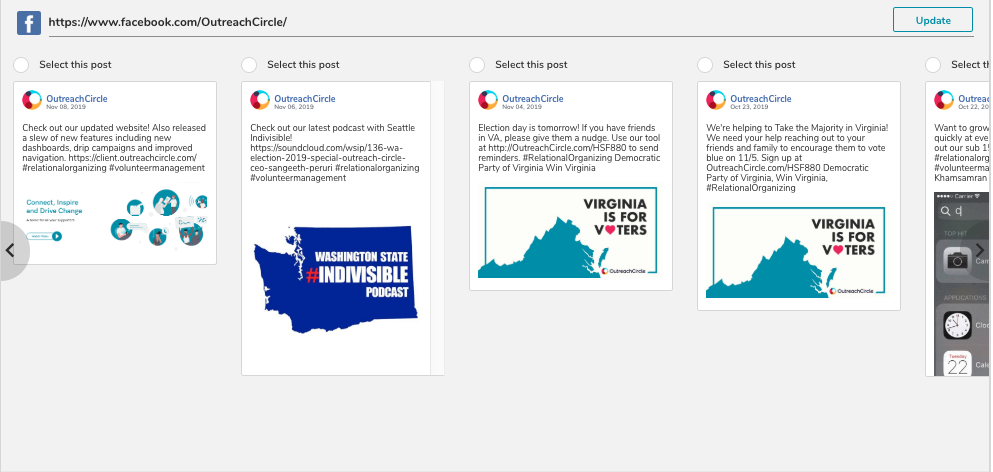
Continue through the action setup wizard.
Converting a Facebook Event to a Facebook Post
You must be the administrator or co-host of the event to be able to do this in Facebook.
The Facebook Social Share Action allows you to ask your supporters to share or like your Facebook post. However, it does not allow you to directly share a Facebook event. To do that, you need to convert it to a post.
- In your Facebook account, select the Facebook event you wish to share and click on it.
- Hover over the Share button and select Share as Post from the drop-down menu.
- Once you select Share as Post, you should get a window. Hover over the drop down menu, select Public, and then click post (bottom right corner). Please note that only users 18 or older are allowed to post publicly on Facebook.
- Go to Facebook Social Share Action to complete this post.
Using Link to a Webpage Actions for Social Sharing
Copy the link to your selected social media post.
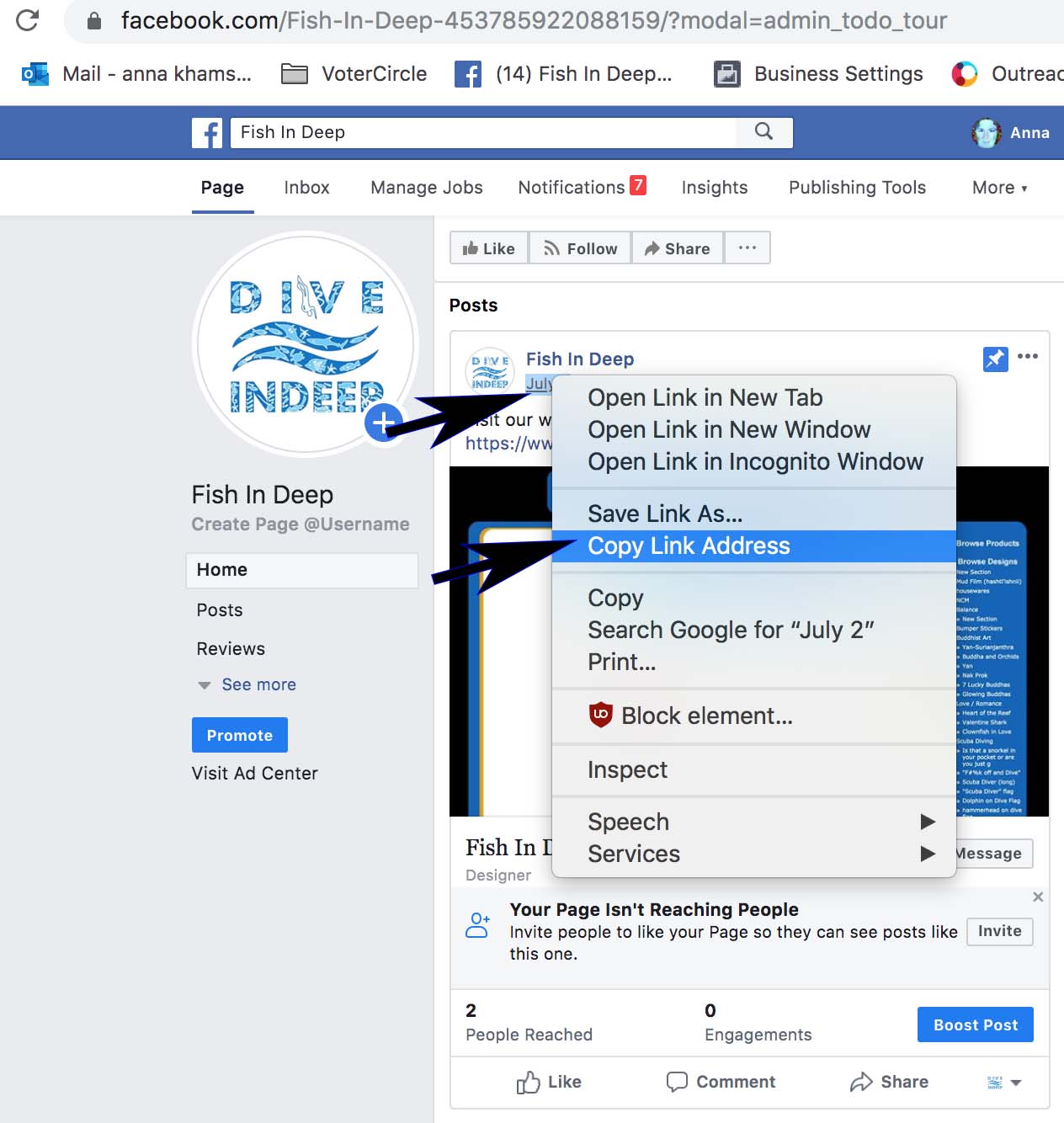
To copy a Facebook link, place your cursor over the date it was posted (at the top of the post, just below the logo and name of the Facebook page) and right click to open a dropdown menu of options. Click "Copy Link Address."
To copy the link to a Tweet, click on the upload icon and choose "Copy Link to Tweet."
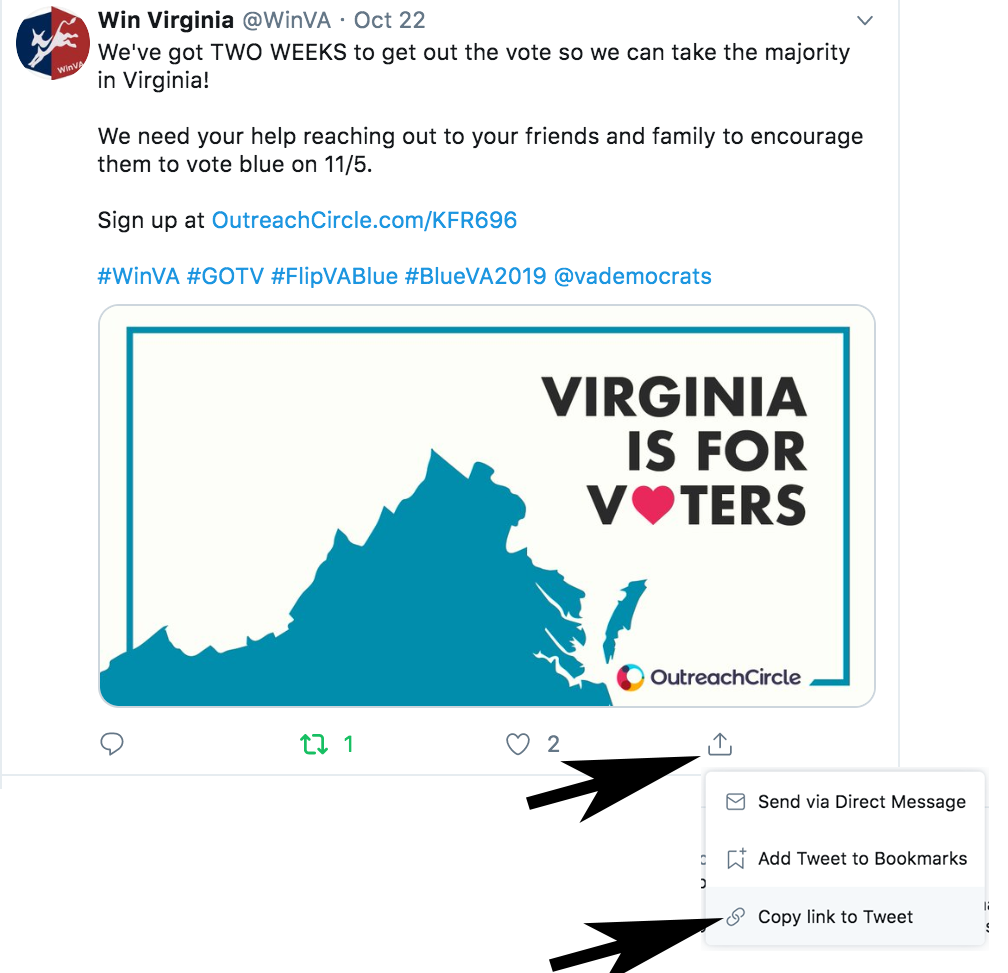
Most other social media sites share their posts in a similar way. Once you have the link, make your new action in OutreachCircle.
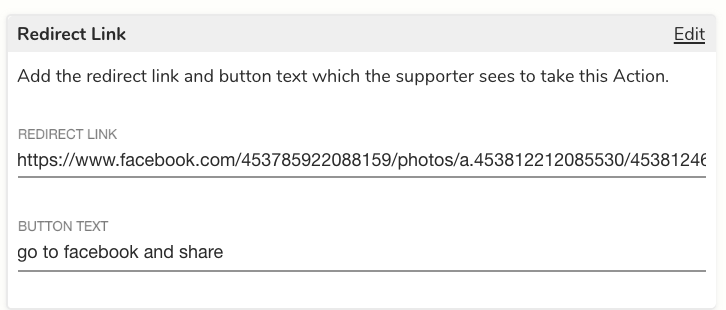
During the setup of your new action, paste the link to the post into "Redirect Link."
Assign a Task Actions
Another way to ask your supporters to share on social media is to assign them a task.
For example, you could give them the task to go to an event for your candidate, take a selfie with the candidate, and post it to social media with the specific hashtag used by your campaign.
Assigning a task in this way means the supporter will be completing the task completely outside of OutreachCircle and will report back once the task is completed. This method can be used to help hashtags trend.
Comments
0 comments
Please sign in to leave a comment.