
When your supporters choose to share your Email or Text Friends Action, they will need to import their contacts into their supporter account so that they can view them.
How to Export Contacts from another platform
How to Manage Contacts in the Supporter App
Import Contacts to a Supporter Account
The Supporter will be prompted to Add Contacts, and can choose from several different choices, or they can import contacts using more than one method.
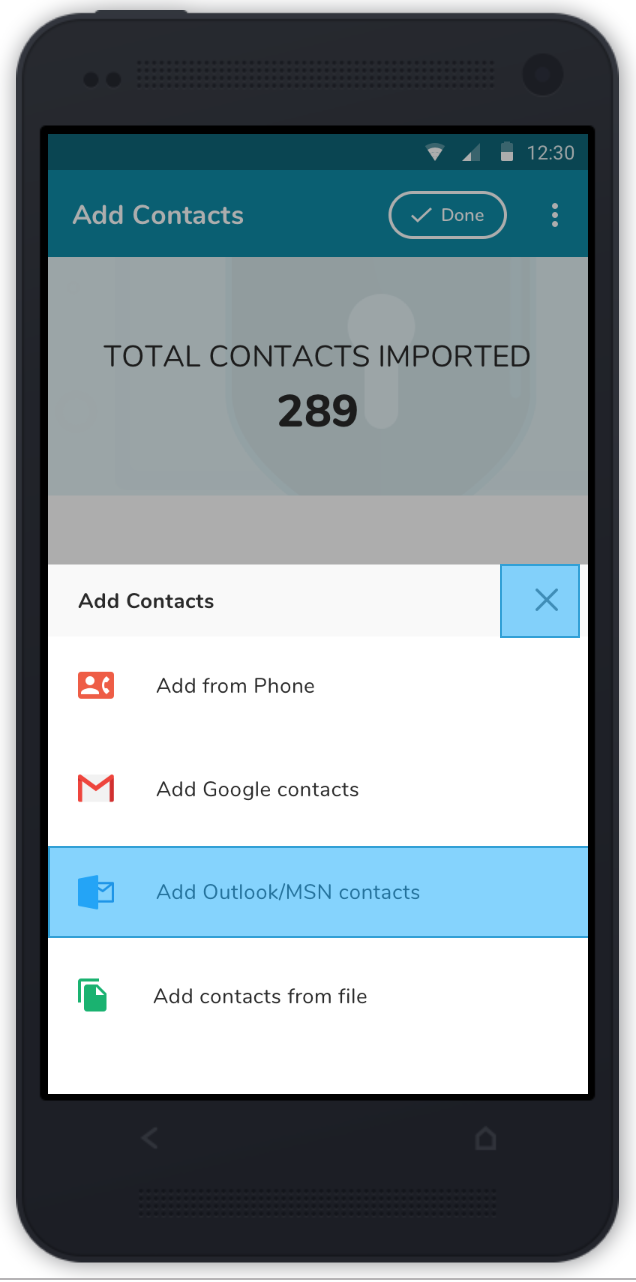
- Add Contacts from Google or from Outlook/MSN leads the Supporter to give permission to use the contacts. This process is very simple.
- Add from Phone is only an option when the supporter has the OutreachCircle App installed and is accessing the site through it.
- "Add from File" must be completed on a computer, rather than a mobile device, and requires the supporter to locate the file of contacts they wish to use. Contact files must be in .vcf(vcard), .csv or .txt format. Windows devices use Windows Explorer to locate the contact file. Mac devices use Finder. Or if you know the name of the file, you can use the Search function in any system.
- Before a Supporter can import a file of contacts directly from their computer, they may need to export their contacts from another platform and create a .vcf(vcard), .csv or .txt format file of contacts and save it in their device.
Export a file of contacts from various messaging and email applications
Please contact outreachcircle@politicaldata.com if you need assistance with this.
Exporting Apple/Mac Contacts to VCF
(versions prior to 10.8 used address books instead of contacts.)
Exporting Apple/Mac Contacts to VCF:
- Open your Contacts:
- Select the contacts you want to export
- Click on File > Export > Export vCard:
- Save the file with a memorable name and in a location you can find it
To upload the contacts on the supporter side (this must be completed on a computer, not a phone).
- Open outreachcircle.com, choose an email action to complete, at the upload contacts screen, choose
- "Add from file or other providers:"
- Click "Browse"
- Choose the vCard / vcf file you saved and click open, then "Preview & Import"
Exporting Apple/Mac Contacts to .csv file
- Open both the Contacts app and the Numbers App(or any other spreadsheet program such as Excel) on your Mac.
- In Contacts, Select the contacts that you want.
- Open a new blank spreadsheet in the Numbers app.
- Drag the contacts you want from the Contacts app to the new blank spreadsheet in the Numbers app.
- Using the Numbers File menu > Export to CSV:
- Enter a descriptive name for the file
- Choose where to save it (in this image it is saving to Documents)
- Click "Export
Export Yahoo Contacts
- In Yahoo Mail, click the Contacts icon
- Click the More options icon

- Click Export (CSV)
Export Comcast/Xfinity Contacts
- Log into your Comcast/Xfinity email account.
- Once logged in, click Address Book
- For each address book you have, click the menu icon (the three horizontal lines) and choose Export.
- The export file will be created. Save it as a .csv file so you can load it into OutreachCircle.
Export Earthlink Contacts
- Log in to Earthlink Web Mail.
- Click Preferences on the lower left of the menu.
- Click Export Address Book on the Preferences menu.
- Click Save/Select.
- Click Next.
- Once your export is complete, click OK. Make sure you save the file as .csv so it can be imported into OutreachCircle.
Export Outlook/Microsoft Contacts
- Sign into your outlook account online
- Click on the contact button at the lower left hand side of the screen that looks like two people
- Choose Manage, and then Export contacts
- The Contact List will download to your computer as a CSV file
Export Thunderbird Contacts
- Within Thunderbird, click Tools > Address Book.
- Select the desired Address Book.
Note: Make sure that you are selecting a specific address book. The selection by default is set as "All Address Books" and exporting this way will result in a blank file. - Select Tools > Export...
Note: If you do not see the Export option, click View > Toolbars to turn this option on.
- Select Comma Separated (*.csv) from the Format drop-down box.
- Choose where you want to save the exported file, give the file a name, and click Save.
Please keep in mind that depending on your operating system or version the steps may vary. If you're having difficulty make sure you check Thunderbird Support for the most recent help.
Comments
0 comments
Please sign in to leave a comment.