
An Organization in OutreachCircle allows you to coordinate activities across multiple OutreachCircles.
Key Features
Key features of an organization include:
- Viewing aggregated stats across OutreachCircles
- Syndicating actions to multiple OutreachCircles
- Setting admin permissions
- Sending admin notifications
Who Should Create an Organization?
Organizations are best suited for:
- State tables coordinating efforts with numerous partner organizations
- National or state organizations with multiple chapters, affiliates or partners
- Labor unions with multiple affiliates and/or locals
- Consultants with multiple clients
- State leg caucuses assisting multiple campaigns
- State parties coordinating efforts with multiple campaigns or county parties
- County parties coordinating efforts with multiple campaigns
How Much Does It Cost?
Nothing! There is no cost to create an Organization.
Creating an Organization
To create an organization, contact outreachcircle@politicaldata.com. Include the names of the circles that should be part of your organization, as well as the names and emails of the admins that should have access to your organization.
Operating an Organization
To access your Organization, click on Organizations and select your Organization.
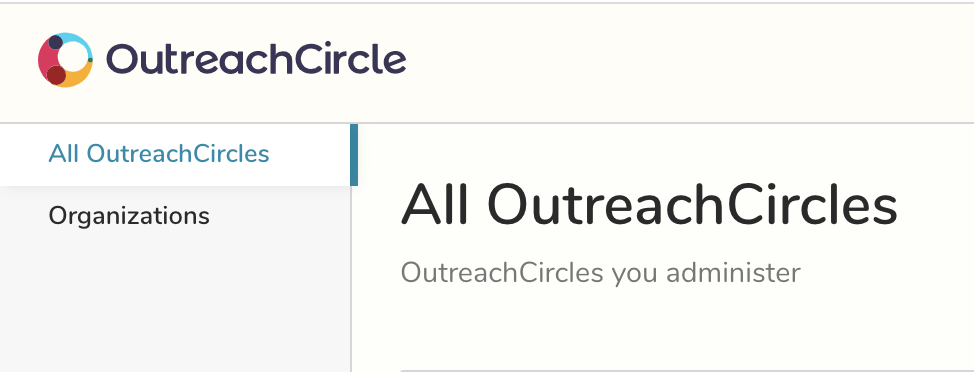
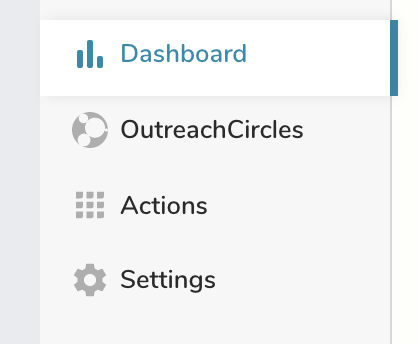
Click on Dashboard to view summary stats. Your Organization Dashboard will show your total and most engaged supporters categorized by which OutreachCircle in your organization they support. Click on OutreachCircles to access OutreachCircles in your organization. Click on Actions to create an action that you can syndicate to OutreachCircles in your organization. Click on Settings to set admin permissions.
If you want to email the admins of some or all of your OutreachCircles, go to OutreachCircles and select the ones you want to contact.
Syndicating an Action
Click Actions. Then create an action like you normally would in any of your OutreachCircles. Once you have finished creating the action, click Publish Action and Select OutreachCircles.


Choose the OutreachCircles that you would like to publish to and click Select.
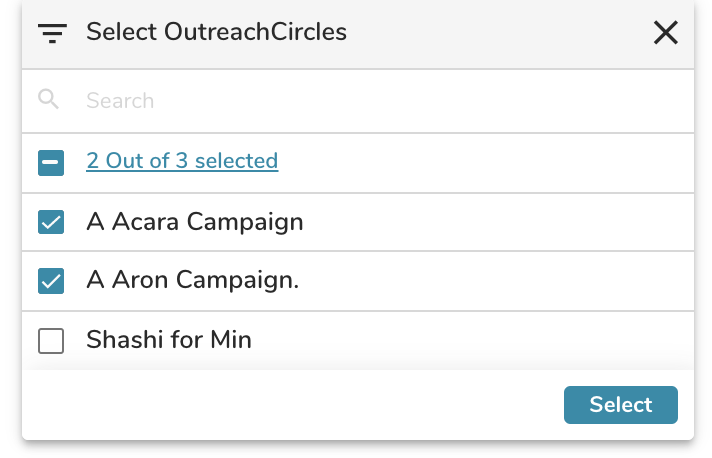
Once an action has been published, it will appear on the Action page in the respective OutreachCircle. All actions published from an Organization will have an Org icon. An admin with access to the OutreachCircle can then click Edit and activate the action.

Organization Settings
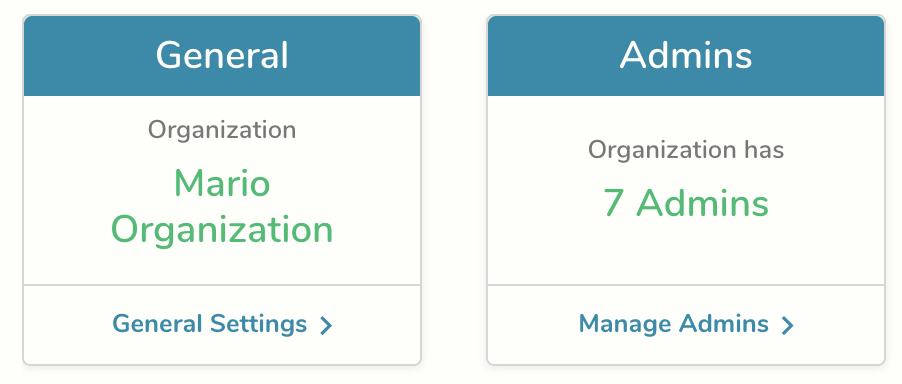
Start by selecting Settings from your Organization. Click on General Settings to change the name of your organization or if you have a white label app for your organization. Select Admin to manage permissions.
Comments
0 comments
Please sign in to leave a comment.